Go to portal.office.com and sign in with your college email address and the temporary password from that email. You’ll be asked to change the password straight away.
Open portal.office.com
Your new password has to:
- be at least 8 characters long
- use both UPPERCASE and lowercase letters
- include at least one number or symbol
Don’t use:
- anything personal: your name, your birthday, your student number
- words to do with IT, “college” or “password”
- place names, including Doncaster
Three random words with a number and a symbol on the end works well, like BeatDrumsSoda2? Write yours down somewhere safe until you know it by heart.
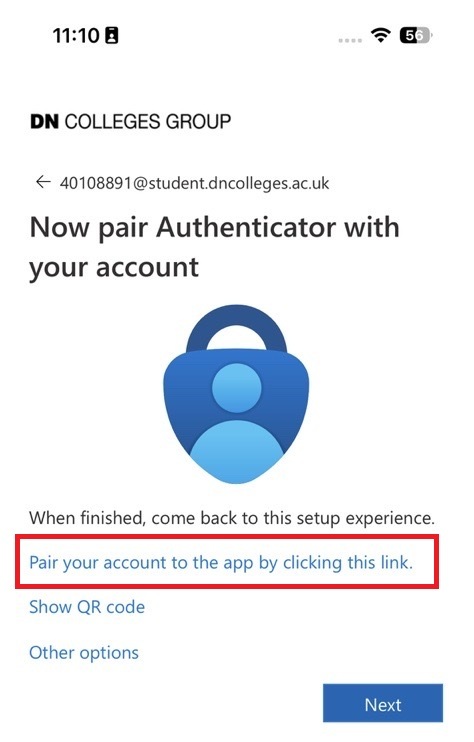
The portal might ask you to set up multi-factor authentication right after this. If it does, follow what’s on screen. If it doesn’t, carry on to Step 4.
Note: when using your mobile to set up your account, you need to click ‘Pair your account to the app by clicking this link’, and then following the instructions. This will pair your account to the MFA without needing to scan a QR code.